How To Find Bird Scooters On App: Easy Guide
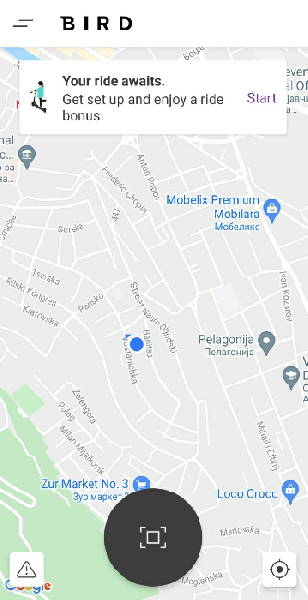
To find a Bird scooter in the United States, open the official Bird app, allow location access, and view the nearby vehicle map. Zoom in on your area, select an available scooter, and follow the app’s directions to reach it. You may need to scan its QR code or enter its vehicle number before the ride begins.
Bird scooter locations can change quickly. A scooter may move, become reserved, lose battery, or leave the service area. Always check the live map, price, parking rules, and local riding laws before you unlock one.

What You Need Before Searching
You need the official Bird app, a supported smartphone, an internet connection, and location services turned on. You may also need a payment method and a valid account before Bird lets you unlock a scooter.
Download the app through the Apple App Store or Google Play. Check that the app lists Bird as the developer. Avoid unofficial apps or websites that ask for your payment details.
Before you search, prepare these items:
- A charged iPhone or Android phone
- Mobile data or Wi-Fi
- Location services enabled
- A Bird account
- A supported payment method
- A helmet, where available and practical
- Knowledge of your city’s scooter and parking rules
Bird service differs by U.S. city. Some areas may have no Bird scooters, limited operating hours, fleet limits, or rules that change by neighborhood. The map inside the app is the best source for current local availability.

How to Find Bird Scooters on the App
Follow these steps to locate a Bird scooter near you.
1. Open the Bird app
Launch the official Bird app on your phone. Sign in or create an account if you have not used Bird before.
The app may request permission to use your location. Choose the setting that lets the app access your location while you use it. Without location access, the map may not center on your current position or show nearby scooters correctly.
2. Check the map
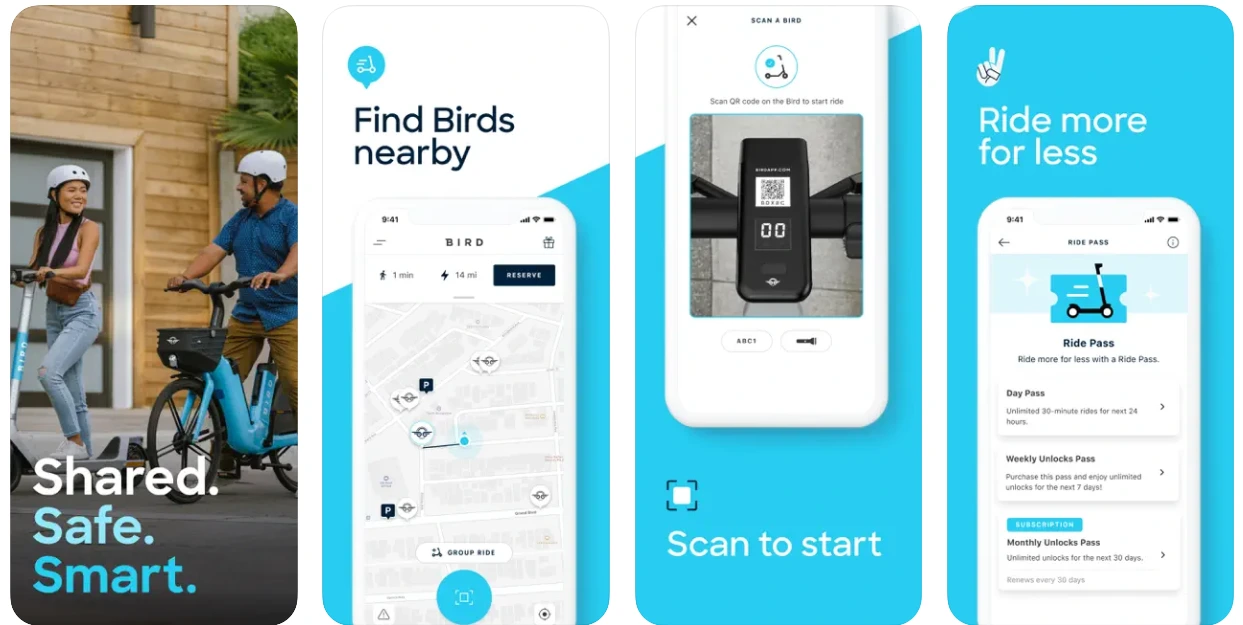
The main screen usually shows a map of your area. Your position may appear as a blue dot, while available Bird vehicles appear as scooter icons or other vehicle markers.
If the map does not show your location:
- Check that your phone’s location setting is on.
- Confirm that the Bird app has location permission.
- Move outdoors or to an area with a clearer GPS signal.
- Close and reopen the app.
- Check your mobile data connection.
Use the search or map controls, if shown, to move to another street, campus, downtown area, or transit stop. The map may show vehicles only inside Bird’s active service area.
3. Zoom in near the scooter marker
Zoom in before walking to a vehicle. A marker that looks close on a wide map may be several blocks away.
Tap the scooter marker to view available information. Depending on the vehicle and city, the app may show:
- Estimated walking distance
- Battery level or range information
- Vehicle type
- A reserve option
- A scan or unlock button
- Parking or ride-zone information
- Estimated pricing
Treat the map marker as an estimate, not a guarantee. GPS data can place a scooter on the wrong side of a building, behind a fence, or near a nearby street.
4. Select a scooter with enough battery
Choose a vehicle that appears close and has enough battery for your planned trip. If the app displays a battery level, use it as a planning guide rather than an exact mileage promise.
Cold weather, hills, rider weight, traffic stops, and battery age can affect the distance a scooter can travel. If you need to cross a large U.S. city or reach a fixed appointment, choose a scooter with more battery than the minimum shown.
5. Walk to the vehicle
Use the app’s map or walking directions to reach the scooter. Look around the marker instead of checking only one exact point.
Bird scooters may be:
- Along a curb
- Near a bike rack
- Outside a transit station
- Beside a public sidewalk
- In a marked micromobility parking area
- Near the entrance to a shopping or office district
Do not enter private property, fenced areas, construction zones, or busy roads to reach a scooter. If you cannot safely access it, choose another marker.
6. Confirm the scooter
When you reach the vehicle, compare the scooter with the information shown in the app. Look for the Bird logo and check the vehicle number if one is visible.
Inspect the scooter before unlocking it. Do not ride if you see serious damage, a loose handlebar, a flat tire, exposed wires, a damaged brake, or another dangerous fault.
7. Scan the QR code or enter the vehicle number
Tap the unlock option in the Bird app. Point your phone’s camera at the QR code on the scooter, if available.
If the scan fails, enter the vehicle number manually when the app provides that option. Hold the phone steady and make sure the code is clean and fully visible.
A successful unlock normally produces an on-screen confirmation and may activate the scooter. If the app does not confirm the unlock, do not assume the ride has started. Check the screen before moving.
How Bird App Map Symbols Help You Choose
The map helps you find a scooter, but each marker can have different conditions. Bird may change its map design, icons, colors, and labels over time or by market.
Common map information may include:
| Map information | What it can mean | What to check |
|---|---|---|
| Scooter marker | A Bird vehicle may be nearby | Confirm the vehicle when you arrive |
| Battery information | The app has an estimated charge level | Allow extra range for hills and delays |
| Service-area boundary | The vehicle can operate only within a marked area | Check whether your destination is inside the zone |
| No-ride area | Riding may be blocked or restricted | Do not enter unless local rules allow it |
| Slow-speed zone | The scooter may reduce speed in that area | Plan for a slower trip |
| Parking zone | The city or Bird may require parking there | Follow the in-app parking instructions |
| Reserved vehicle | Another user may have selected it | Choose a different scooter if it is unavailable |
Map colors do not have one universal meaning across every Bird market. Read the label or in-app notice rather than guessing what a color means.
A scooter can also disappear from the map while you walk toward it. Another rider may have unlocked it, the battery may have failed, or Bird may have removed it from service.

What to Do When No Bird Scooters Appear
If no scooters appear, first check whether Bird operates in your current U.S. location. Bird does not provide service in every city, and availability may be limited to certain districts.
Then work through these checks:
- Refresh the map. Pull down on the map or reopen the app.
- Check location permission. Make sure Bird can use your current location.
- Check your connection. Switch between Wi-Fi and mobile data if possible.
- Zoom out slightly. A narrow map view may hide nearby markers.
- Look for a service boundary. You may be outside the active area.
- Check the time. Some cities limit riding or fleet deployment by time of day.
- Update the app. An older version can cause display or login problems.
- Restart the phone. This can fix temporary GPS or app errors.
- Try another nearby public area. Scooters may cluster near transit, downtown streets, campuses, or approved parking zones.
- Contact Bird support. Use the in-app help option if the problem continues.
If the map shows a scooter but you cannot find it, search both sides of the street and nearby public parking areas. Do not trespass or walk into traffic. If the marker remains inaccurate, report the vehicle through the app when that option is available.

How to Tell Whether a Bird Scooter Is Ready to Ride
A scooter is ready only after the Bird app confirms the unlock and the vehicle passes a basic safety check.
Before moving, test the following in a safe place:
- Both brake levers
- The throttle response
- The tires
- The handlebars
- The display or status lights
- The deck and stem
- The bell, if fitted
- Any visible cables or wiring
Start slowly. Keep both hands on the handlebars, wear a helmet, and ride where local law permits. Avoid carrying passengers unless the specific vehicle and local rules clearly allow it.
If the scooter will not move after the app confirms the start, check the screen for an error. Do not repeatedly press the throttle in a crowded area. End the ride or contact support if the scooter appears defective.

How to Check Pricing Before Unlocking
Bird pricing can vary by city, time, vehicle, taxes, and local operating rules. The app may show an unlock charge, a per-minute rate, a pass, or another fee structure.
Review the price shown in the app before you confirm the ride. Do not rely on a price from an old article, social media post, or a different U.S. city.
A simple planning estimate is:
Estimated ride cost = unlock charge + time-based charge + displayed fees or taxes
For example, if the app shows a $1 unlock charge and a $0.40 per-minute rate, a hypothetical 15-minute ride would be:
$1.00 + (15 × $0.40) = $7.00
This example is only a calculation method. It is not a current Bird price. Your app’s checkout or ride screen controls the actual amount.
Also check whether a temporary hold, authorization, pass, or subscription appears before the ride. If the total is unclear, contact Bird support before unlocking.

How to Follow Bird Parking and Service Rules
Finding a scooter is only part of the trip. You must also end the ride in an approved place.
Before you start, check the map for:
- Designated parking areas
- No-parking zones
- Sidewalk restrictions
- Private-property boundaries
- No-ride or slow-speed zones
- City-specific end-of-ride instructions
Do not block curb ramps, sidewalks, building entrances, bus stops, fire hydrants, driveways, accessible parking spaces, or emergency paths. Keep the scooter upright and leave enough room for people using wheelchairs, strollers, or mobility aids.
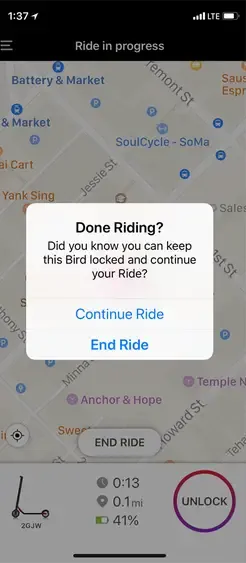
Some cities require riders to park in marked corrals or approved zones. The Bird app may require a photo before it lets you finish the trip. If so, take a clear photo that shows the scooter is parked correctly.
A ride is not finished just because you stop moving. Confirm that the app displays an end-of-ride message and that the timer has stopped. Keep the receipt or trip record until you confirm the final charge.
Common Problems When Finding a Bird Scooter
| Problem | Likely cause | Best next step |
|---|---|---|
| No scooters on the map | Bird is unavailable, the area is outside the service zone, or the map has not refreshed | Check the service area, refresh, and try a nearby public location |
| Scooter marker is nearby but no scooter is visible | GPS drift, private access, or a moved vehicle | Search nearby public space and report the location if needed |
| QR code will not scan | Dirty, damaged, dark, or poorly aligned code | Improve lighting, clean the code, or enter the vehicle number |
| Unlock button is missing | Account, payment, location, or vehicle restriction | Check account details, permissions, and the scooter status |
| Scooter unlocks but will not move | Mechanical fault, error, or restricted zone | Stop, check the app, and report the scooter |
| Ride will not end | Parking location is not approved or the app has lost connection | Move only if safe, follow parking instructions, and contact support |
| Price looks higher than expected | Different local rate, added time, fee, or tax | Review the ride receipt and report a billing concern through support |
Do not keep riding a damaged scooter just because it unlocked. Unlock status does not prove that the vehicle is safe or suitable for travel.
Safety and Legal Checks for U.S. Riders
Scooter laws differ among states, cities, counties, campuses, and private properties. Local rules may set minimum ages, helmet requirements, speed limits, road restrictions, sidewalk rules, and parking standards.
Check the local government or transportation agency website for the city where you plan to ride. Bird’s in-app notices may also show local requirements, but they do not replace the law.
Use a helmet, stay alert, and avoid riding under the influence of alcohol, cannabis, or medication that affects balance or reaction time. Ride defensively around cars, pedestrians, buses, bikes, and doors opening from parked vehicles.
Call emergency services in the United States when there is an immediate threat to life or serious injury. For a non-emergency vehicle or account issue, use Bird’s support tools instead.

Frequently Asked Questions
Can I find a Bird scooter without the app?
Usually, the app is the most reliable way to confirm whether a scooter is available and to unlock it. You may see a Bird scooter on the street, but it may be reserved, inactive, out of service, or assigned to another rider.
Why can I see a scooter in person but not in the Bird app?
The scooter may be offline, already in use, outside the service area, or removed from the active fleet. The map may also need to refresh. If it remains absent, do not assume it is available for rent.
Can I reserve a Bird scooter?
The app may offer a reservation option in some markets and for some vehicles. Availability, time limits, and possible charges can vary. Read the reservation terms shown in the app before confirming.
What if a Bird scooter is in a private yard or behind a gate?
Do not enter private property to retrieve it. Choose another scooter or report the location through Bird support if the app provides that option.
Can I end a Bird ride anywhere?
No. You must follow local parking rules and any instructions shown in the app. Some cities require parking in marked zones, and a ride may continue until the app accepts the final parking location.
Conclusion
The fastest way to find a Bird scooter is to open the official Bird app, enable location access, and use the live map to select a nearby vehicle. Confirm its battery, price, service area, and parking rules before you unlock it.
If a scooter does not appear, refresh the map, check your permissions and connection, and confirm that Bird operates in your U.S. location. When you reach a vehicle, inspect it, scan the QR code, start slowly, and verify that the app confirms both the ride start and the final ride end.